
Facilities Inventory: Baseline Inventory Reports
Facilities Inventory Documentation
Generating a Baseline Inventory Report
Single Org Rooms & Shared Rooms in Oracle Analytics Server (OAS) Dashboard
Link to the OAS Facilities Inventory (IWMS) Dashboard. This site requires the user to sign in with a Cornell SSO. If access is not granted please have the College/Division Org Admin send an email to FI-help@cornell.edu requesting access.
Both baseline reports are available in the OAS Dashboard for Facilities Inventory. Navigation to the reports is within the Other Reports section on the main dashboard screen. (Figure 1)
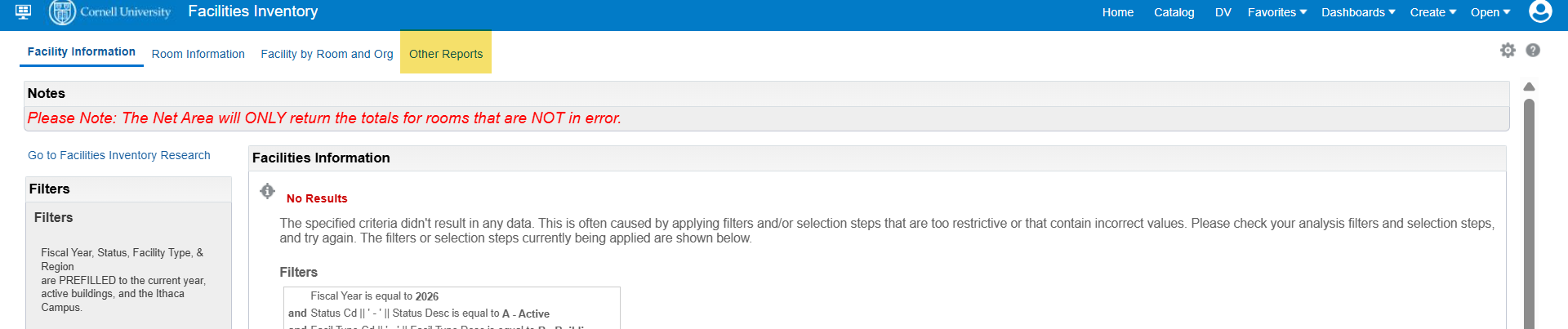
Figure 1 - OAS Facilities Inventory (IWMS) Dashboard highlighting Other Reports section link
Under Inventory User Reports section, two baseline reports are available. (Figure 2)
- Single Org Rooms - the rooms are limited to those with orgs that have a percentage set at 100.
- Shared Rooms - the rooms are limited to those with orgs that have individual percentages at less than 100.
- This includes org codes that are split due to the CC/EN values.
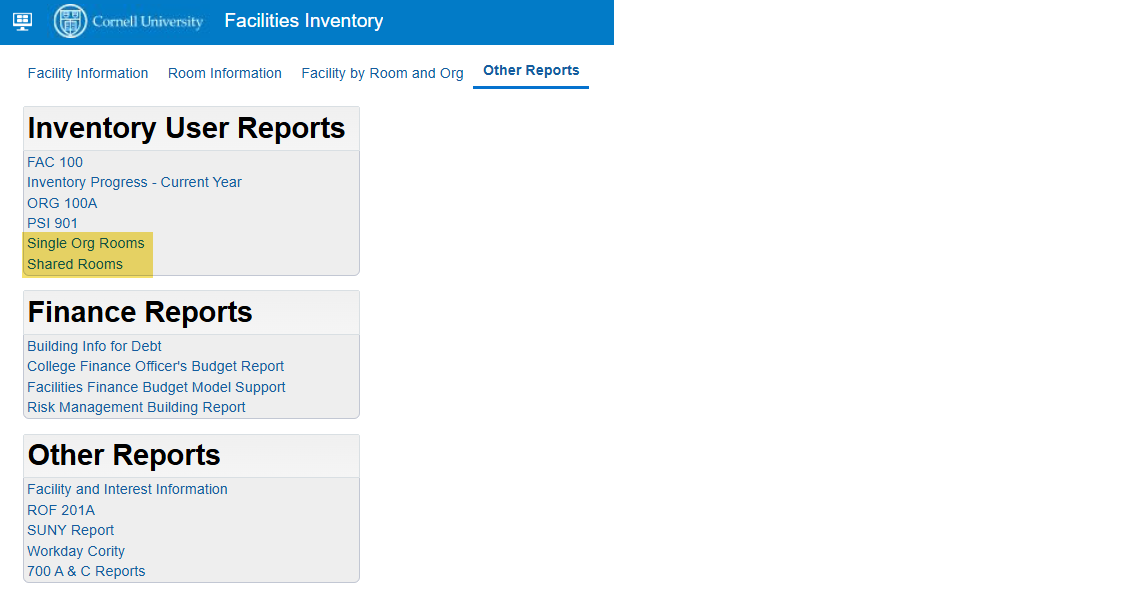
Figure 2 - OAS Facilities Inventory (IWMS) Dashboard: Other Reports screen highlighting listed reports
The separation of single and shared rooms into separate reports will create some issues with departments that have 100% of the room but are split between either CC/EN values or multiple orgs that are reviewed by one department user.
FIG is aware that this will create the need to pull two separate reports even when the department is not sharing the room with outside departments. This is the only method to ensure that shared rooms with outside departments are not mistakenly incorporated into an uploaded report that would delete the other department's information in a room when updating the information via a spreadsheet.
All rooms that are shared with outside departments will need to be entered into the system manually or coordinated with the shared departments before a system upload.
Rooms that are on the Shared Rooms report but are reviewed in their entirety by a single department user, can be uploaded directly to the system.
Single Org Rooms report step-by-step instructions
Shared Rooms report step-by-step instructions
Once the download(s) are completed, the department user can use the report to review the inventory for updates to each room. Changes can be made directly to the spreadsheet for uploading to the system.
Items that can be changed in a room via the spreadsheets.