
Facilities Inventory: Shared Rooms Baseline report instructions
Facilities Inventory: Baseline Inventory Reports
Facilities Inventory Documentation
Shared Rooms report
Begin by selecting the KFS College/Division in which the department org resides by using the drop-down menu. (Figure 1)
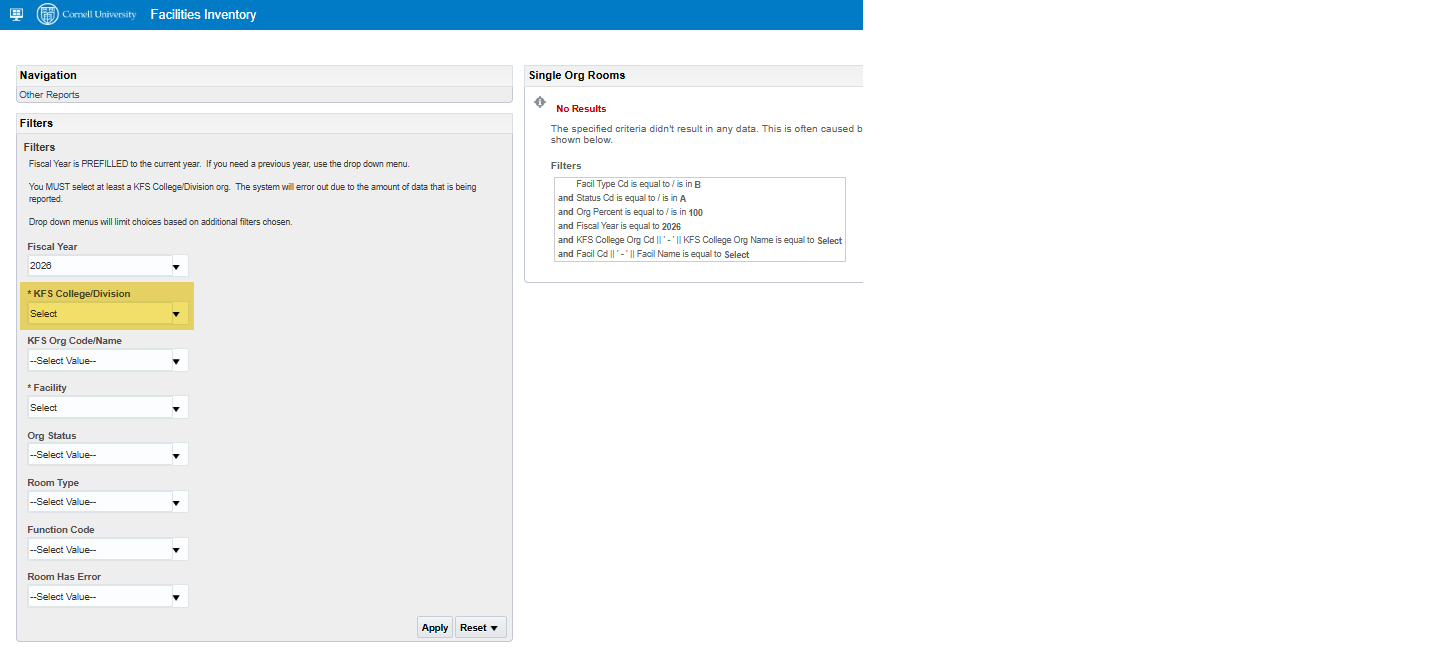
Figure 1 - Shared Rooms report filters
Once the drop-down menu appears, remove the checkmark next to the Select option. (Figure 2)
Choose the KFS College/Division Org in which the department org resides by placing a checkmark next to the choice.
- If only one Org appears, a checkmark is still required for the system to recognize the selection.
- Multiple choices are allowed for users with split departments.
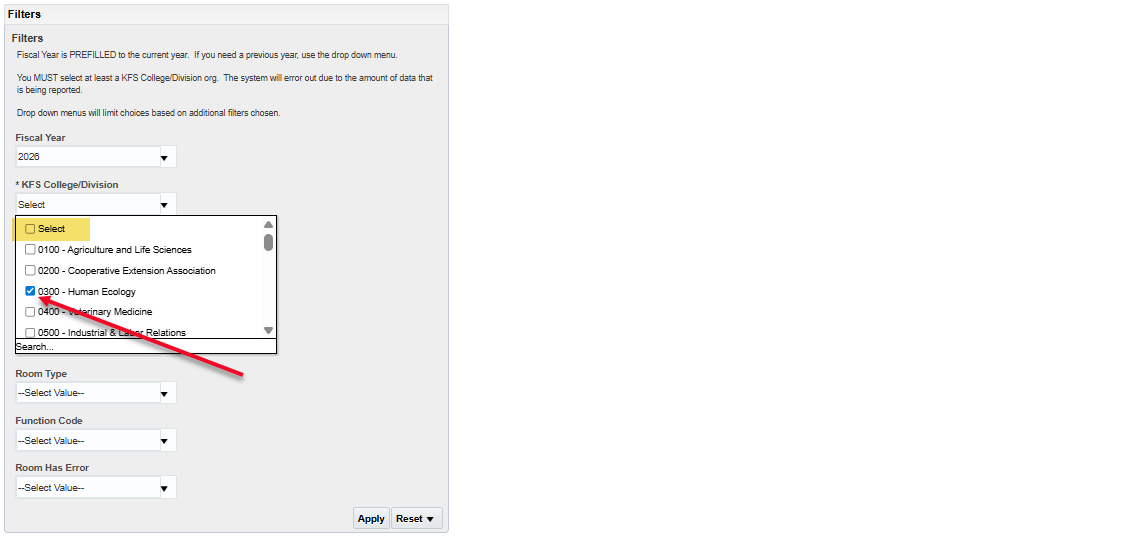
Figure 2 - Shared Rooms report highlighting the removal of Select option and selection of Org Code.
After selection of the KFS Org Code(s), the Fiscal Year filter will reset its values requiring the selection of the appropriate year. (Figure 3)
- Use the drop-down menu function to select the correct fiscal year for the baseline report.
- Once the Org Code(s) and Fiscal Year options are selected, click on the Apply button in the bottom right of the filter menu box. (Figure 3)
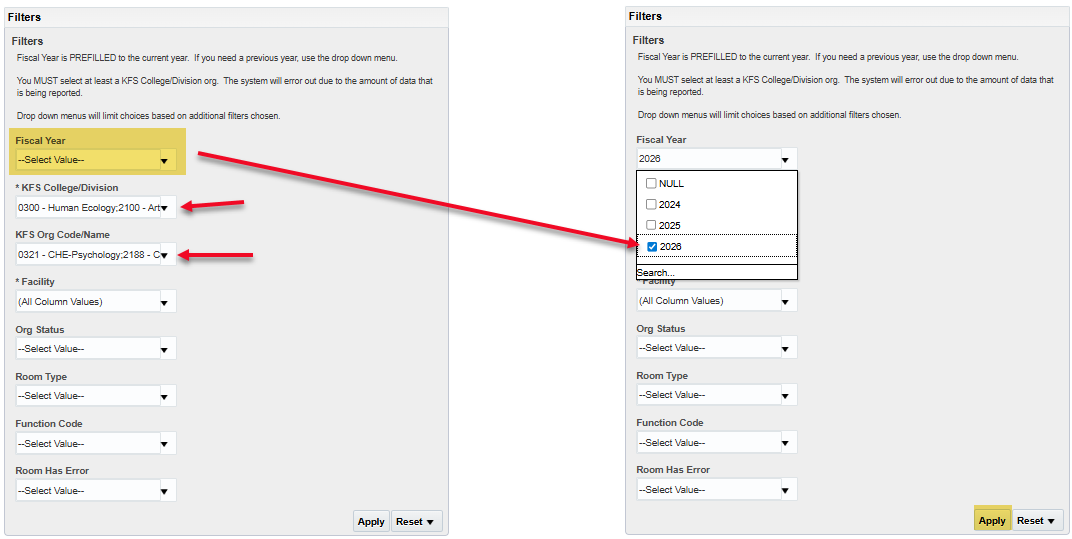
Figure 3 - Highlighting of the Fiscal Year reset, multiple Org Code selections, and location of Apply button
The system will produce a report showing all rooms that match the criteria selected within the report. (Figure 4)
Scroll to the bottom of the report produced to find the Export selection for downloading the report.
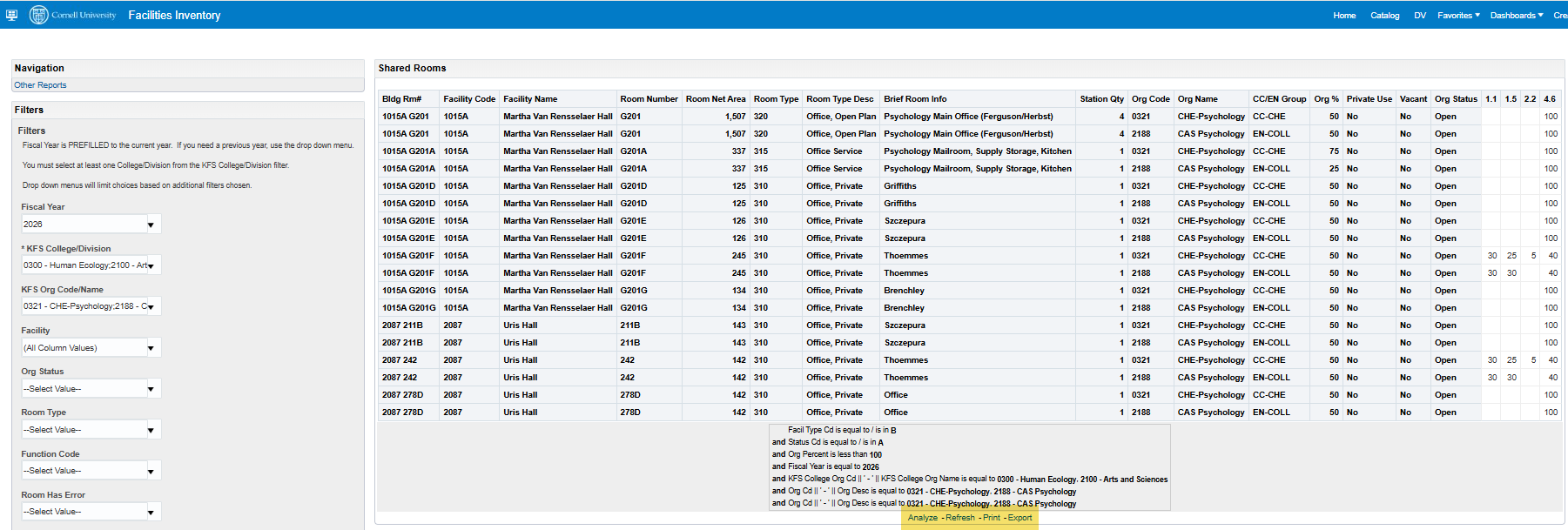
Figure 4 - Shared Rooms report produced showing location of Export option
To export the file with the correct formatting to ensure that the Function Codes remain in a single row format, the formatted Excel file must be chosen. (Figure 5)
- Click on Export
- Click on Formatted
- Select Excel
The report will be sent to the Download file within the computer's file folder system. It can be easilty retrieved by clicking on the download icon in the upper right-hand corner of the web browser. (Figure 6)

Figure 5 - Shared Rooms report Export option showing steps to retrieve formatted file for download

Figure 6 - Location of the downloaded file within the web browser for easy access
If the downloaded report does not look like the report in the OAS Dashboard, then the non-formatted version was selected in error. The user will need to repeat the previous export steps to download the correct version.
Figure 7 shows a comparison between the two different Excel reports.
- The top version is the formatted version.
- Columns are spaced based on the cell information.
- Columns have a set coloring, such as a light blue.
- Titles are in bold print.
- The bottom version is not formatted.
- Columns are equally spaced.
- No coloring or bold font titles.
- Function codes are no longer in a pivot fashion, but are listed as individual lines with room numbers repeating.
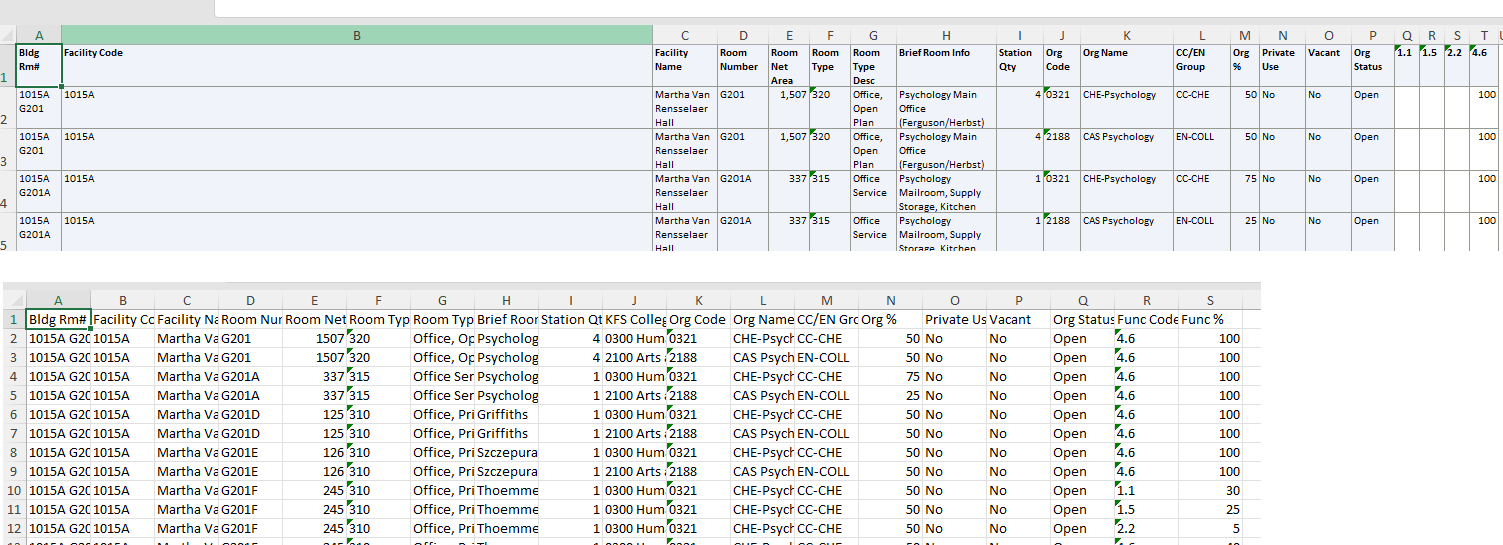
Figure 7 - Shared Rooms report download comparison between formatted and unformatted versions
The user can now use the report to review and edit changes that will be needed for the inventory system to complete the inventory cycle review.
Changes allowed in baseline reports