
Facilities Inventory Reports: Physical Space Inventory (PSI) Room Type Report
Last updated: 5/16/13 v2 jml
This report provides a list of rooms for one or more facilities. The data can be filtered by org code or room type.
Select PSI from Main Menu
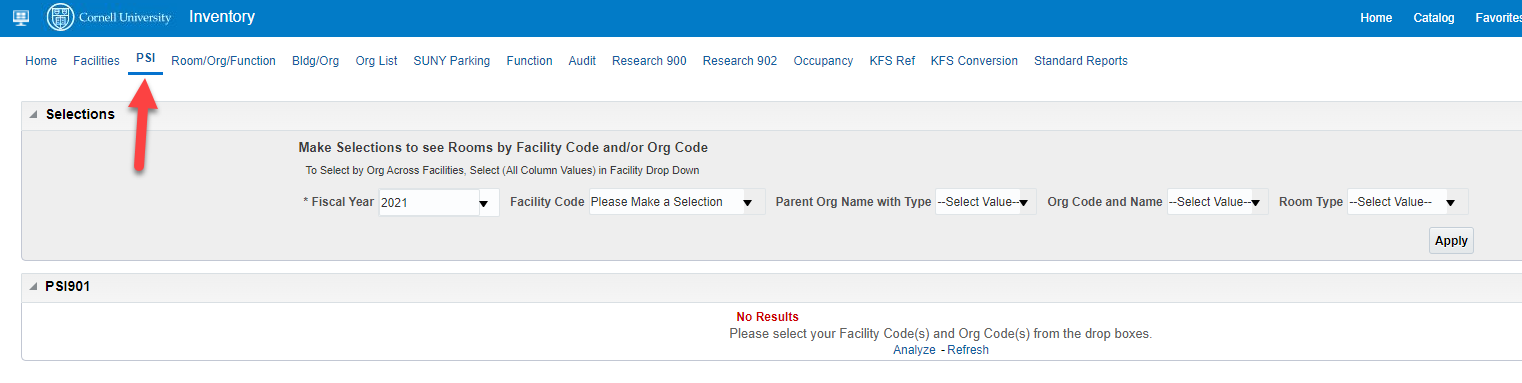
In Oracle Analytics, find the report by clicking on the PSI link indicated by the red arrow in the picture below.
Choose One or More Facility Codes
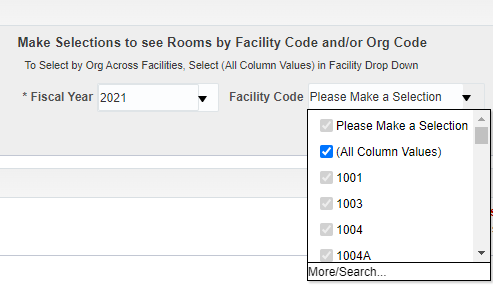
Before you will see any information, it is necessary to place a check mark next to either
- one or more facility codes or
- the "All Column Values" choice
In the drop-down list next to "Facility Code", the "All Column Values" choice shown in the the picture below will return data for all facilities to which you have access.
Optional additional limits:
- Org Code
- Parent Org code or
- Room Type.
Facility Code(s) determine the values in the remaining drop-down selection boxes; values are limited by the attributes of the selected Facility(s). If you choose not to limit your report by Facility Code, choose “All Column Values”.
In this example I’ve limited the Facility Code using “All Column Values” – all Orgs are shown in the values of the Org Code drop-down list.
Optional: Choose One or More Org Codes
In this example I’ve limited the report to Facility 2023, only Orgs that have a presence in facility 2023 are shown in the values of the Org Code Drop Down.
Optional: Choose One or More Room Types
Reorder Report Columns
Columns in the report can be reordered; move your mouse over the header of the column you would like to move, and when the tab appears, drag and drop.
Sort Data within a Column
The report is sorted by column from left to right. Columns can be sorted by ascending or descending order; the default sort is ascending. To change the sort order click on the arrow next to the column name. ▲Sort ascending, ▼descending.
In this example, all the columns are sorted in ascending order.
Facility Code is the first sort, Room Numbers are sorted within Facility Codes, Org Codes are sorted within Room Numbers… Because each room can only have one room type, the Room Type sort within Room Numbers has no effect.
If you move the “Org Code" column to the left of the report so that it is the first column, then the list of rooms will be sorted first by org code.
Room 102 in Rice Hall is now sorted by Org Code
Subtotals can be added and columns can be hidden or excluded from view.
To clear subtotals, check none.
In this example I’ve excluded the column Facility Name
To un-exclude it, select “Include Column”, and choose “Facility Name”.
When exported as data, hidden/excluded columns are exported, but subtotals are not. When exported as Excel or a PDF, hidden/excluded columns are not included, but subtotals are.