
Facilities Inventory: Viewing Floor Plans
Back to Facilities Inventory Documentation
Last updated: February 23, 2024
There are several methods for locating a particular floor plan in the facilities inventory. This method works for users who update the inventory as well as users who do not perform updates and have read-only access.
Navigate to "Views" and select "1.30 Floors/Drawings" as shown in Figure 1 below.
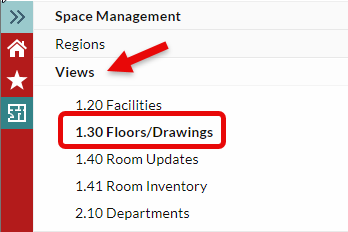
Figure 1. View "1.30 Floors/Drawings" is found under the "Views" menu item.
When you first open a data view such as 1.30 Floors/Drawings, the options to search by a column are not present. Click the small filter icon from the top row above the column headers as shown in Figure 2 below to turn on search capabilities.
Figure 2. The filter icon is a toggle switch. Click it to turn on the ability to search by column values.
To search for a floor plan by facility code, in the column called "Facility Code", having already turned on the the filter switch above, type the facility code in the empty box beneath, click the filter icon to the right of the words "Facility Code" to choose a filter choice. "Exact" would work as a filter choice in this case.
Figure 3. Type the facility code and select the "Exact" search type from the filter icon drop-down to the right of the column heading "Facility Code".
Once the search is complete, the floor list will be filtered to display only those matching the specified "facility code".